Many programs and documents are used on a modern computer. To be able to work with such a large amount of information, you need a launch pad that will help you.
Download now >>
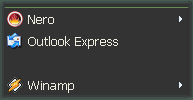
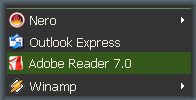
Programs are easy to find because they are exactly where you left them. It's always confusing in the regular menu when you install or remove some programs and some or all of your other programs change their positions. That's why it was difficult for you to find your programs. Vista Start Menu keeps the positions of programs the same and leaves empty space in the menu when you un-install a program. But not to worry a new program will occupy this space in time.
If your vision is poor, or if you set a very large or very small screen resolution, and you want to continue working with comfort, you can simply zoom the screen in or out. Zooming can be adjusted independently of the system settings with the help of the Ctrl+"+" and Ctrl+"-" keys on the keyboard, or on the screen.
You probably have many programs in the Start menu and are tired of scrolling through them to find what you are looking for, right? We have the solution for that, too!
You can resize Vista Start Menu just like any other window, so all programs are visible on the screen at the same time and can be easily accessed.
You can place the menu in a convenient part of the screen or even on another monitor or TV. The program will automatically select the optimal size for the Monitor's window.
Tabs
Power buttons
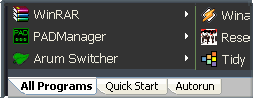
We have extended the workspace by adding tabs to it. Now, each menu item can contain any number of tabs, which allows you to arrange your information in a comfortable and convenient way for YOU. The free version has tabs with the Quick Launch bar as well as the Startup list.
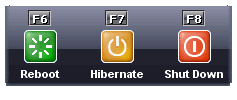
You can even quickly shut down or restart the computer using the keyboard, by using shortcut keys. EVERYTHING is much easier. Press the Windows key on the keyboard to open the menu and then press the key corresponding to the desired operation. For example, press F3 to switch the user or F8 to shut down the computer. Power buttons are also available in the menu and you can easily access them with the mouse.
Highlighting new programs
Comfortable scrolling
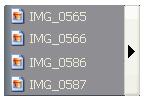
All programs installed last week will be highlighted in a different color in the menu. This will help you quickly find new documents or programs and since they will never change their positions, you will always know where you can find them the next time that you need them.
Have you installed so many programs that they do not all fit on the screen? The convenient scrolling feature is especially for you. Just move the mouse pointer over the panel and the program will start smoothly scrolling the list.
Always ready
We developed this product so that a professional user can work without taking his or her hands away from the keyboard. Even a beginner will use the mouse less, thanks to having all the necessary commands at hand.
Download now >>
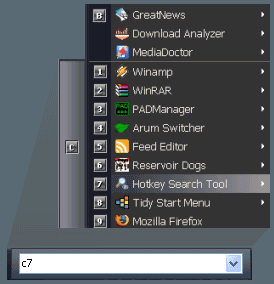
In the past, you had to press the arrow keys and other keys several times until you reached the item you needed. Now you can start any program with just a couple of keystrokes. The program splits the list into sections. You select the necessary section with the first key (for example, by pressing E) and then select the item in the section by pressing one of the keys 1 to 9. Note that
the positions of the programs do not change and thus you can memorize these key combinations and use them every day.
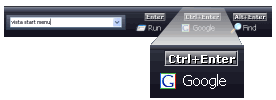
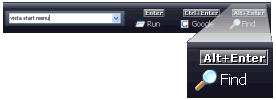
You no longer have to start your browser just to visit a search engine. Just press the Windows key on the keyboard, type the term you need, press Ctrl+Enter and get the search results. It's so simple!
Command line support
PC search
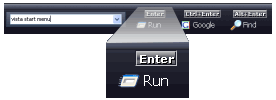
To access the command line in Windows XP, you had to make several mouse clicks. Now you can type a command immediately and simply press Enter to execute it.
It is also possible to start searching the local computer right from the command line of the Start menu. We are also planning to add other known engines for searching the local computer.
System integration
This program completely replaces the menu without modifying system files or settings. To revert back to the old menu, just uninstall the program. Also, you can disable integration and start Vista Start Menu by using the Quick Launch bar or the system tray, if you prefer that method.